Using Categories
Organize your documentation pages into categories for better navigation and structure.
What are Categories?
Categories group related pages together in the sidebar navigation. Each category can have:
- Custom name
- Icon
- Color
- Collapsed/expanded state
Creating Categories
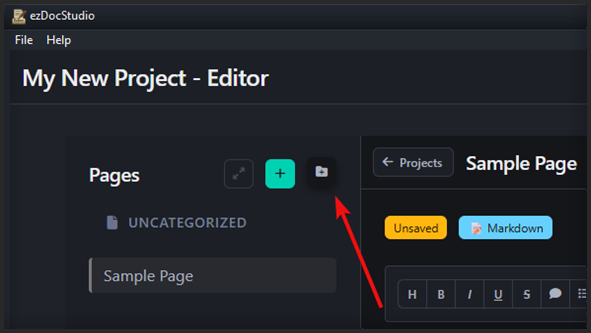
- Click the 📁+ button in the sidebar header
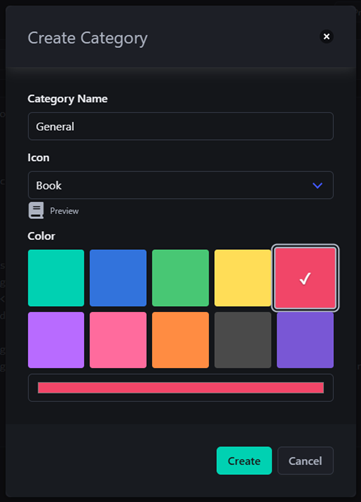
- Enter a category name
- Choose an icon from the dropdown
- Select a color (preset or custom)
- Click "Create"
Available Icons
Choose from 36 Font Awesome icons:
- Rocket - Getting started content
- Book - Documentation
- Code - Technical content
- Terminal - CLI guides
- Database - Data-related
- Cloud - Cloud services
- Shield - Security topics
- Wrench - Configuration
- Palette - Design content
- And many more!
Color Options
Preset Colors
- Turquoise (#00d1b2)
- Blue (#3273dc)
- Green (#48c774)
- Yellow (#ffdd57)
- Red (#f14668)
- Purple (#b86bff)
- Pink (#ff6b9d)
- Orange (#ff8c42)
- Dark Grey (#4a4a4a)
- Violet (#7957d5)
Custom Colors
Enter any hex color code for custom branding.
Editing Categories
- Hover over a category header
- Click the ⚙️ gear icon
- Modify name, icon, or color
- Click "Update"
Deleting Categories
- Edit the category
- Click "Delete Category"
- Choose what to do with pages:
- Move to "Uncategorized"
- Or delete pages (careful!)
Moving Pages to Categories
Drag and Drop
- Click and hold a page
- Drag it to a category header
- Release to drop
The page moves to that category automatically.
From Uncategorized
Pages without a category appear in "Other Pages". Drag them to any category to organize them.
Collapsing Categories
Click a category header to collapse/expand it. The state is saved automatically.
Category Order
Categories appear in the order they were created. To reorder:
- Drag & drop to change the order
- Or manually edit
navigation.json
Category in Exported Sites
Categories appear in exported documentation with:
- Colored headers
- Icons
- Organized page lists
- Same visual style
Best Practices
Naming Categories
- Use clear, descriptive names
- Keep names short (1-3 words)
- Use consistent naming patterns
Icon Selection
- Choose icons that represent content
- Use consistent icon style
- Don't overuse similar icons
Color Coding
- Use colors meaningfully
- Maintain good contrast
- Consider color blindness
Organization
- Group related content
- Limit to 5-8 categories
- Use subcategories sparingly
Example Category Structure
API Documentation
🚀 Getting Started (Turquoise)
- Introduction
- Quick Start
- Authentication
📘 API Reference (Blue)
- Endpoints
- Parameters
- Responses
💡 Examples (Yellow)
- Code Samples
- Use Cases
- Tutorials
🔧 Advanced (Grey)
- Rate Limiting
- Webhooks
- Best Practices
Uncategorized Pages
Pages without a category appear in "Other Pages" at the bottom of the sidebar when exported. This is useful for:
- Work in progress
- Temporary pages
- Pages that don't fit categories